


![AutoFull G7 Ergonomic Gaming Chair [🍂Autumn Special Offer] AutoFull US](http://www.autofull.com/cdn/shop/files/gaming_chair_1_c5f546de-af69-4926-b5e4-a859ea893772.jpg?v=1777458714&width=70)


![AutoFull G7 Gaming Chair & A4 Pro Gaming Desk Bundle [💥Combo Off] AutoFull US](http://www.autofull.com/cdn/shop/files/20251109-151002.jpg?v=1762672486&width=70)
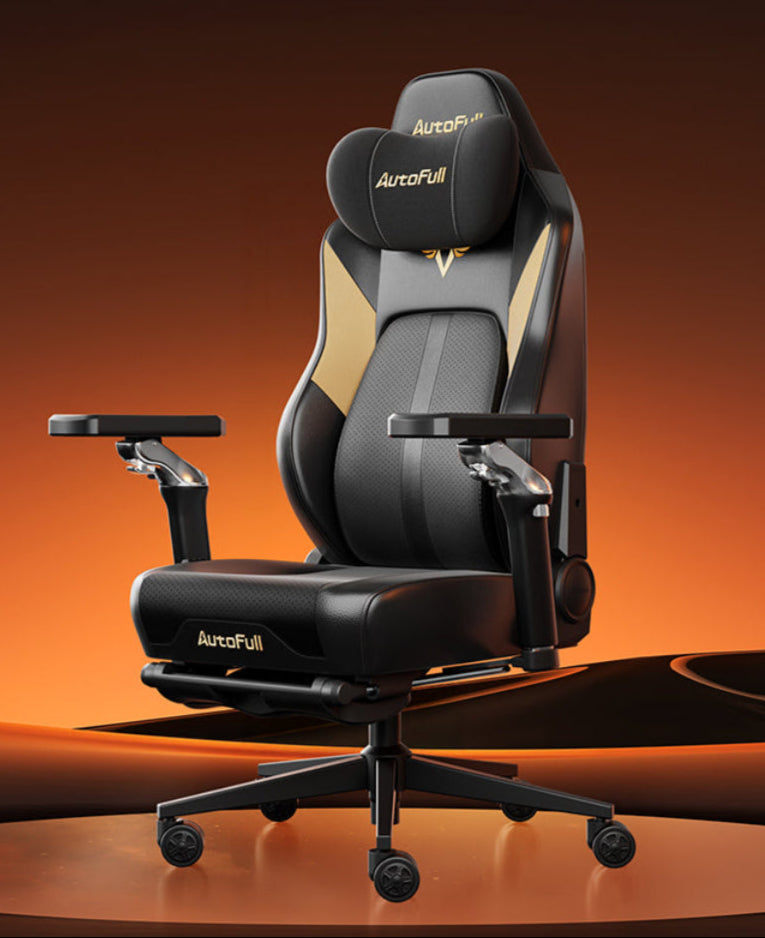


Long gaming sessions can make your neck, shoulders, wrists, lower back, and legs feel stiff. You do not need a full workout between matches, but short seated stretches can help you reset your posture and reduce tension. With the right routine and a supportive chair setup, even an ergonomic chair for desk use can become part of a healthier gaming environment.
Why Stretching Between Matches Is Important
Gaming often keeps your body in one position for a long time. Your eyes stay focused on the screen, your hands repeat small movements, and your shoulders may slowly move forward without you noticing.
Short stretching breaks help you interrupt that static posture. They can improve blood flow, reduce muscle tightness, and remind you to sit in a more balanced position.
What Happens When You Sit Too Long?
When you sit for hours, several things can happen:
- Your neck may lean toward the screen.
- Your shoulders may round forward.
- Your wrists may stay bent over the keyboard or controller.
- Your hips may feel tight.
- Your ankles and legs may feel stiff.
A good chair helps, but it does not replace movement. Even the best desk chair for long hours works better when you take short breaks and change position regularly.
How Often Should Gamers Stretch?
A simple rule is to stretch for 30 to 60 seconds between matches or every 30 to 45 minutes. You do not need to leave your setup every time. Many movements can be done while seated, especially if you use an adjustable ergonomic chair that lets you sit upright with stable support.
How To Do Neck And Shoulder Stretches Safely
Neck and shoulder tension is common during gaming because players often lean forward, raise their shoulders, or hold the same head position for too long.
Stretch 1: Seated Neck Side Stretch
Sit upright with both feet flat on the floor. Keep your shoulders relaxed. Slowly tilt your right ear toward your right shoulder. Do not pull hard. Hold for 15 to 20 seconds, then repeat on the left side.
You should feel a gentle stretch along the side of your neck. If you feel sharp pain, stop immediately.
This stretch works best when your chair supports an upright position. An ergonomic posture chair can help because it encourages your head, shoulders, and back to stay aligned instead of collapsing forward.
Stretch 2: Shoulder Rolls
Sit tall and let your arms rest naturally by your sides. Roll your shoulders upward, backward, and down in a slow circle. Repeat 5 to 8 times, then reverse the direction.
Shoulder rolls are useful between fast matches because they take only a few seconds. They help release tension from raised shoulders and upper back muscles.
Quick Posture Check
After the stretch, check your setup:
- Is your monitor at eye level?
- Are your shoulders relaxed?
- Are your elbows close to your body?
- Is your back touching the chair?
If your neck tightness returns quickly, your screen may be too low or too far away.
How To Stretch Your Lower Back And Hips
Lower back and hip tightness often comes from sitting with the pelvis tilted, the feet unsupported, or the backrest unused. These stretches can help you reset your seated posture.
Stretch 3: Seated Lower Back Twist
Sit upright and place both feet flat on the floor. Put your right hand on the outside of your left thigh. Slowly rotate your upper body to the left while keeping your hips facing forward. Hold for 15 to 20 seconds, then switch sides.
Do not twist quickly or force the movement. The goal is gentle mobility, not a deep stretch.
If your chair has strong ergonomic chair back support, use it after the stretch by sitting back fully and letting the backrest support your lower spine.
Seated Hip Opener
Sit near the front of your chair. Place your right ankle over your left knee, forming a figure-four shape. Keep your back straight and gently lean forward from the hips. Hold for 15 to 20 seconds, then switch sides.
This stretch targets the hips and glutes, which can become tight after long sitting. It is especially helpful if you sit cross-legged or tuck one leg under your body while gaming.
Why Lower Back Support Matters
Stretching can reduce tightness, but your chair setup still matters. If your lower back is not supported, you may keep returning to the same uncomfortable position. An ergonomic chair back support system or properly placed lumbar pillow can help your lower spine maintain a more natural curve.
How To Improve Wrist And Forearm Mobility
Gamers often use repeated hand and finger movements. Keyboard, mouse, and controller use can make the wrists and forearms feel tight, especially during long sessions.
Stretch 4: Wrist Flexor Stretch
Extend one arm in front of you with your palm facing up. Use your other hand to gently pull the fingers downward. Hold for 15 seconds, then switch hands.
You should feel a stretch along the inside of your forearm. Keep the stretch light and controlled.
Wrist Extensor Stretch
Extend one arm with your palm facing down. Gently pull the hand downward so the fingers point toward the floor. Hold for 15 seconds, then switch sides.
This stretch helps the top side of the forearm, which can become tense from mouse clicking and keyboard use.
Hand Reset Between Matches
After stretching, open and close your hands 5 to 10 times. Then shake your hands lightly. This short reset can help reduce stiffness before the next round.
If your wrists often feel sore, check your desk height. Your forearms should stay close to level with the desk, and your wrists should not bend sharply upward or downward. A supportive ergonomic chair for desk use should let your elbows stay near a comfortable 90-degree angle.
When To Incorporate Short Leg And Ankle Movements
Leg and ankle movements are easy to forget during gaming, but they matter. Sitting still for long periods can make your legs feel heavy or stiff.
Stretch 5: Seated Leg Extension And Ankle Circles
Sit upright with your back supported. Extend one leg forward until your knee is straight but not locked. Flex your foot gently, then point your toes. After that, make 5 small ankle circles in each direction. Switch legs.
This movement is simple, quiet, and easy to do while waiting for a match to load.
Seated Calf Raise
Keep both feet flat on the floor. Lift your heels while keeping your toes down. Lower them slowly. Repeat 8 to 10 times.
This is not a deep stretch, but it helps wake up the lower legs after long sitting.
When Should You Do Leg Movements?
Use leg and ankle movements:
- During loading screens
- Between ranked matches
- While waiting in a lobby
- After long cutscenes
- Before standing up after sitting for hours
Even if you own the best desk chair for long hours, your body still needs small movement breaks to avoid stiffness.
Which Stretches Are Best For Long Gaming Sessions
The best stretches are the ones you can do consistently without interrupting your game routine too much. For long sessions, use a simple five-part routine:
- Neck side stretch
- Shoulder rolls
- Seated lower back twist
- Wrist and forearm stretch
- Leg extension with ankle circles
This routine covers the areas most affected by gaming: neck, shoulders, back, wrists, hips, and legs.
How Long Should The Routine Take?
A full routine can take 2 to 4 minutes. If you only have 30 seconds, choose one upper-body stretch and one wrist stretch.
For example, between short matches, do shoulder rolls and wrist flexor stretches. During a longer break, add the lower back twist and hip opener.
How Should Your Chair Support Stretching?
A chair should allow you to sit upright, keep your feet stable, and move without tipping. An adjustable ergonomic chair is helpful because you can set the height, backrest, and armrests to match your body.
If your chair is too low, too high, or too deep, stretching may feel awkward. You may also slide forward or lose balance. Before stretching, sit with your feet flat and check that the chair is stable.
Should You Stretch If You Feel Pain?
Mild tightness is normal, but sharp pain is not. Stop any movement that causes pain, numbness, tingling, or dizziness. If discomfort continues, consider speaking with a healthcare professional.
Stretching should feel controlled and gentle. Do not bounce, force your joints, or use your chair in a way that makes it unstable.
How To Set Up Your Chair For Better Gaming Posture
Stretching works best when your normal sitting position is also comfortable. A chair cannot prevent every posture problem, but it can reduce unnecessary strain.
Adjust Seat Height
Your feet should rest flat on the floor. Your knees should stay around hip level. If your feet do not reach the floor, use a footrest.
Use The Backrest
Many gamers sit at the front edge of the chair during intense moments. That is normal for short periods, but try to return to the backrest between matches. An ergonomic posture chair is most useful when you actually let it support your back.
Position Armrests Correctly
Armrests should support your arms without lifting your shoulders. If they are too high, your neck and shoulders may tighten. If they are too low, you may lean to one side.
Support The Lower Back
A chair with proper ergonomic chair back support can help reduce lower back fatigue during long sessions. The support should sit near the natural curve of your lower back, not high in the middle of your spine.
Conclusion
Short seated stretches can make gaming breaks more useful without taking you away from your setup for long. Focus on the neck, shoulders, lower back, hips, wrists, and legs. A supportive chair setup also matters. When your chair fits well and allows easy adjustment, stretching becomes easier to repeat between matches and more effective during long sessions.
FAQs
Can I Stretch Without Leaving My Gaming Chair?
Yes. Neck stretches, shoulder rolls, wrist stretches, seated twists, hip openers, and ankle movements can all be done while seated. Make sure your chair is stable before moving.
How Often Should Gamers Stretch?
A good goal is every 30 to 45 minutes or between matches. Even one minute of movement can help reduce stiffness from staying in the same position.
What Is The Best Stretch For Wrist Pain From Gaming?
A gentle wrist flexor and wrist extensor stretch can help reduce forearm tightness. Keep the movement light. If pain continues, stop playing and seek professional advice.
Can A Better Chair Reduce Gaming Discomfort?
Yes, a properly fitted chair can help support your back, arms, and sitting posture. However, no chair replaces regular movement and breaks.
Is An Adjustable Chair Better For Long Gaming Sessions?
Usually, yes. An adjustable chair lets you set the seat height, backrest, and armrests to match your body, which can make long sessions more comfortable.


