


![AutoFull G7 Ergonomic Gaming Chair [🍂Autumn Special Offer] AutoFull US](http://www.autofull.com/cdn/shop/files/gaming_chair_1_c5f546de-af69-4926-b5e4-a859ea893772.jpg?v=1777458714&width=70)


![AutoFull G7 Gaming Chair & A4 Pro Gaming Desk Bundle [💥Combo Off] AutoFull US](http://www.autofull.com/cdn/shop/files/20251109-151002.jpg?v=1762672486&width=70)
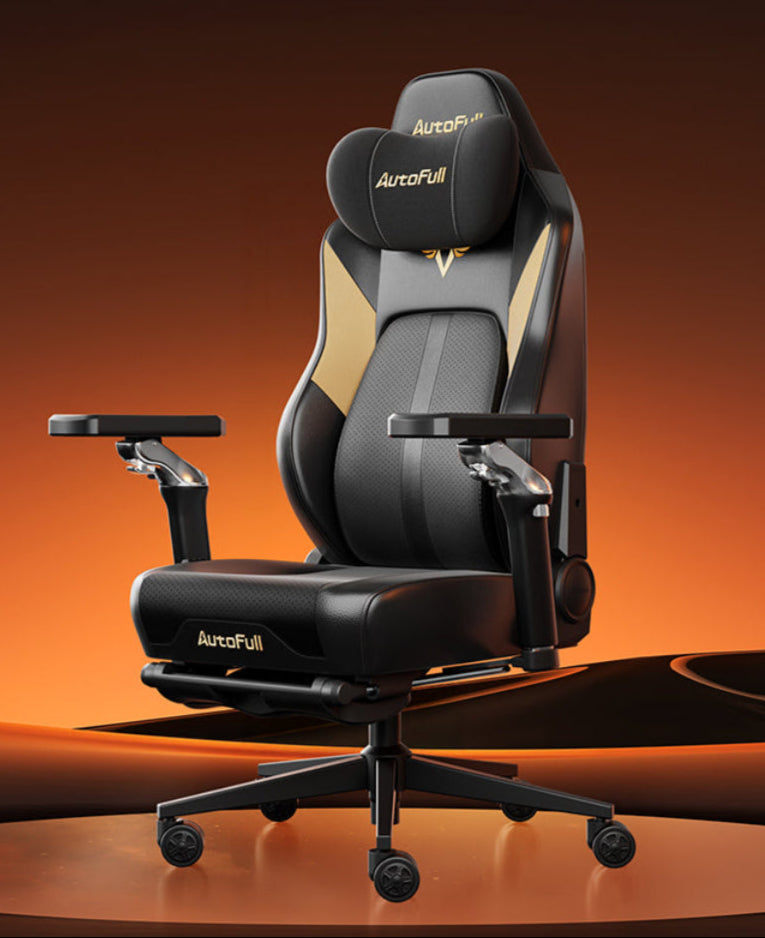


Purchasing a high-end chair is only the first step toward a pain-free setup. If you do not calibrate the hardware to your specific body dimensions, even the most expensive seat will cause physical fatigue. Many users experience back and neck pain simply because they do not know how to utilize the adjustment mechanisms correctly. This guide provides a step-by-step biomechanical approach to configuring an adjustable gaming chair. By mastering seat height, armrest positioning, and lumbar support, you can transform your hardware into the perfect desk chair for long hours of work or competitive play.

1. Set the Perfect Seat Height
The foundation of proper ergonomics begins where your body meets the floor. The height of your seat pan dictates the blood flow to your lower extremities and the alignment of your pelvis.
How Do You Find the Right Height?
To find the correct height, use the pneumatic lever (usually located under the right side of the seat). Adjust your height-adjustable gaming chair so that your feet are planted completely flat on the floor.
Your knees should be bent at exactly a 90-degree angle, with your hips positioned at or slightly above the level of your knees. If your knees are higher than your hips, your pelvis will tilt backward, forcing your lower back to round into a slouched posture. This places immense pressure on your lumbar discs.
What If My Desk is Too High?
A common problem occurs when a user adjusts their height-adjustable gaming chair correctly for their legs, but finds they are now sitting too low to reach their keyboard comfortably. If you raise the chair to match a tall desk, your feet will dangle. Dangling feet cut off circulation at the back of the thighs. The solution is to raise the chair to match the desk height, and then place a solid, angled footrest under your desk. This restores the 90-degree angle at your knees and ensures your feet remain supported.
2. Protect the Natural Curve of Your Spine
The human spine has a natural inward curve in the lower back (the lumbar region). When you sit for long periods, your muscles fatigue, and you naturally tend to slump forward, which flattens this curve and stretches the spinal ligaments painfully.
How Should Lumbar Support Be Positioned?
Proper gaming chair lumbar support acts as a physical barrier that prevents your spine from flattening. Whether your chair uses an external strap-on pillow or an internal mechanical dial, the support must be positioned correctly.
Slide your hips all the way back until your buttocks touch the backrest. The apex (the thickest part) of the gaming chair lumbar support should fit snugly into the deepest curve of your lower back, right at the beltline. If the support is placed too high, it pushes your mid-back forward, causing your shoulders to hunch. If it is placed too low, it pushes your pelvis forward, eliminating the support entirely.

Adjust Lumbar Tension
If your adjustable gaming chair features an internal dial, you can adjust the depth (tension) of the curve. The support should feel firm but not invasive. It should gently push against your spine when you relax your back muscles. If you feel pressure points or pain after 30 minutes of sitting, reduce the tension slightly until your back feels neutral.
3. Reduce Shoulder and Wrist Strain
Armrests are often the most misunderstood feature of a gaming setup. Incorrectly positioned armrests lead directly to shoulder tension (trapezius pain) and wrist issues like Carpal Tunnel Syndrome.
The 90-Degree Elbow Rule
A high-quality gaming chair with adjustable armrests typically features "4D" movement (up/down, forward/back, left/right, and pivot). First, adjust the height. Drop your shoulders so they are completely relaxed. Bend your elbows to 90 degrees. Raise the armrests until they barely touch the underside of your forearms.
If the armrests are too high, you will shrug your shoulders toward your ears to use them, causing immediate upper back pain. If they are too low, you will lean forward or sideways to reach them, twisting your spine out of alignment.
Width and Pivot Adjustments
Next, adjust the width. A gaming chair with adjustable armrests allows you to slide the pads closer to or further away from your body. The armrests should be positioned so your arms hang straight down from your shoulders, not splayed outward.
Finally, use the pivot function. If you play FPS games with a low sensitivity and need your mouse arm angled inward toward the keyboard, pivot the right armrest inward to support your forearm through the entire sweeping motion. This full support is what makes an ergonomic seat the ideal desk chair for long hours.
4. Backrest Recline and Tilt Tension: Balancing Rest and Focus
Static sitting—locking your body into one rigid position—is detrimental to spinal health. The backrest of your chair should facilitate dynamic movement.
Setting the Recline Angle
For active typing or fast-paced gaming, the backrest should be locked in an upright position, typically between 90 and 100 degrees. This keeps your head stacked over your shoulders and your eyes level with the monitor.
However, when reading long documents, watching cutscenes, or waiting in a game lobby, you should unlock the backrest and recline to 110 or 120 degrees. Reclining transfers a significant portion of your upper body weight from your spinal discs to the backrest of the chair, providing essential mechanical relief.
Adjusting the Tilt Tension Knob
Look under the front center of your seat pan for a large, cylindrical knob. This controls the tilt tension—how much physical force is required to rock the chair backward.
- If you are a lighter person, turn the knob counter-clockwise to decrease the tension; otherwise, the chair will feel stiff and refuse to recline.
- If you are a heavier person, turn the knob clockwise to increase the tension. If the tension is too loose, you will feel like you are falling backward instantly when you lean back.
The goal is to set the tension so you can gently rock back and forth using only the weight of your torso, creating a "floating" sensation.
5. Create a "Healthy Sitting" Routine for Professional Gamers
Hardware adjustments are only effective when combined with physical discipline. Even a perfectly calibrated adjustable gaming chair cannot negate the biological effects of sitting motionless for eight hours.
To prevent digital eye strain and muscle lock-up, implement the 20-20-20 rule. Every 20 minutes, look at something 20 feet away for 20 seconds. During this time, unlock your chair's tilt mechanism and rock backward. This micro-movement rehydrates the spinal discs.
You must break up your sitting routine. Stand up completely every 60 to 90 minutes. Walk around the room, stretch your hamstrings, and perform shoulder rolls. An ergonomic desk chair for long hours is designed to reduce the physical toll of sitting, but standing up resets your body's circulatory system and prevents the hip flexors from permanently shortening.
Master Your Gaming Chair Setup Today
An ergonomic chair is a sophisticated tool that requires precise calibration. By applying the 90-degree rule to your seat height, placing your gaming chair lumbar support at the exact curve of your lower back, and optimizing your gaming chair with adjustable armrests to reduce shoulder strain, you create a custom-fit environment. Regularly utilizing the recline function and maintaining healthy sitting habits ensures that your height-adjustable gaming chair performs exactly as intended, protecting your body from chronic pain and maximizing your focus during long sessions.
FAQs about gaming chair ergonomic setup
How high should my gaming chair be?
Your height-adjustable gaming chair should be set so that your feet are entirely flat on the floor and your knees are bent at a 90-degree angle. Your hips should be level with or slightly higher than your knees to prevent your lower back from rounding.
Where should the lumbar pillow go on a gaming chair?
The gaming chair lumbar support should rest precisely in the deepest inward curve of your lower back, usually right at or slightly above your beltline. It should fill the gap between your spine and the chair, preventing you from slouching forward.
Should my armrests be level with my desk?
Ideally, yes. When your shoulders are relaxed and your elbows are bent at 90 degrees, a gaming chair with adjustable armrests should support your forearms at the exact same height as your keyboard and mouse. This allows your arms to glide smoothly onto the desk without bending your wrists upward.
Is it better to sit straight or recline while gaming?
For intense, focused tasks, sitting straight (90 to 100 degrees) is best for reaction time and visual alignment. However, for casual tasks or watching media, reclining to 110-120 degrees is better for your back, as it reduces the vertical compressive load on your spinal discs.


