


![AutoFull G7 Ergonomic Gaming Chair [🍂Autumn Special Offer] AutoFull US](http://www.autofull.com/cdn/shop/files/gaming_chair_1_c5f546de-af69-4926-b5e4-a859ea893772.jpg?v=1777458714&width=70)


![AutoFull G7 Gaming Chair & A4 Pro Gaming Desk Bundle [💥Combo Off] AutoFull US](http://www.autofull.com/cdn/shop/files/20251109-151002.jpg?v=1762672486&width=70)
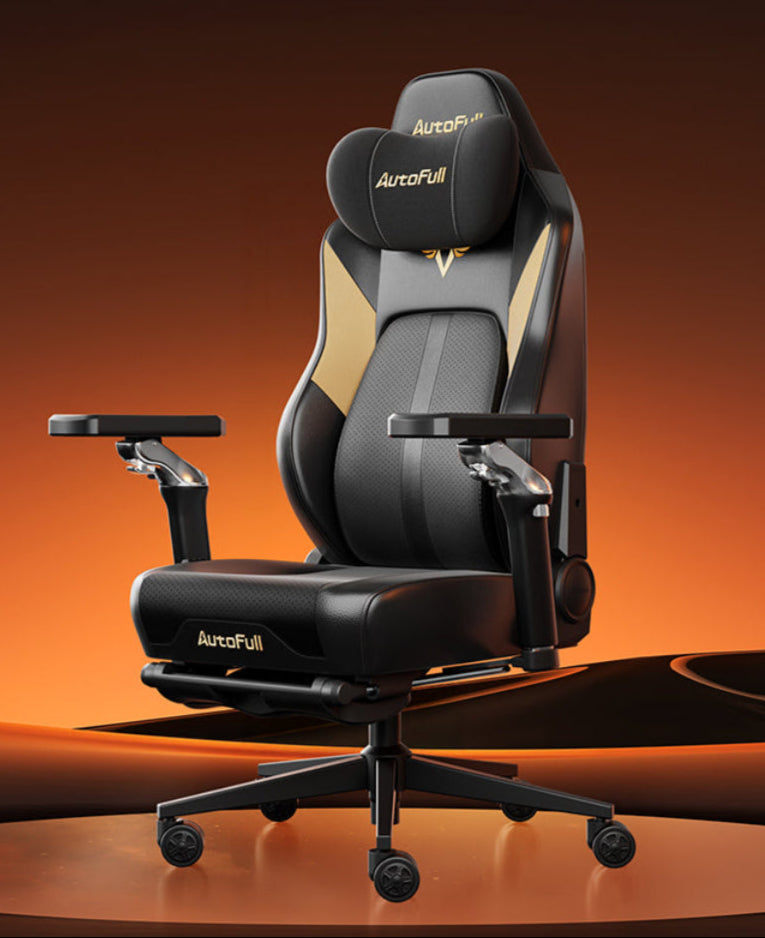


Spending hours locked in intense gaming sessions often leads to severe physical discomfort. If you experience a stiff neck, burning shoulders, or tension headaches after playing, your posture and desk setup are likely the culprits. This guide explains exactly how to align your body, position your screens, and utilize the right hardware. By implementing proper adjustments, you can eliminate pain, maintain sharp focus, and protect your long-term spinal health.

What Causes Gamer Neck and Shoulder Tension?
Physical pain during gaming rarely happens overnight. It is the result of cumulative stress placed on your muscles and joints over hundreds of hours of incorrect positioning.
The human head weighs approximately 10 to 12 pounds. When your ears align directly over your shoulders, your cervical spine supports this weight effortlessly. However, when you lean in closely to stare at your monitor, you create "forward head posture." For every inch your head moves forward out of neutral alignment, the stress on your neck muscles doubles. This unnatural forward lean creates severe tension in the suboccipital muscles at the base of your skull, leading to what is commonly known as "gamer neck."
The second major cause of shoulder tension is inadequate arm support. If your elbows hang freely in the air while your hands grip the mouse and keyboard, your trapezius muscles (the muscles bridging your neck and shoulders) must constantly contract to hold your arms up. After just thirty minutes of static contraction, these muscles become fatigued, stiff, and painful. Understanding these mechanical failures is the first step to prevent gamer neck and correct your setup.
How High Should Your Armrests Be for Good Chair Desk Ergonomics?
Your arms act as an anchor point for your entire upper body. Proper arm positioning instantly relieves the burden on your neck and shoulder muscles.
To achieve proper chair desk ergonomics, you must adjust your chair height and armrests so that your elbows bend at exactly a 90-degree angle. Sit comfortably in your chair with your feet flat on the floor. Let your shoulders relax completely. Bend your elbows to 90 degrees. At this exact height, the armrests should make solid contact with the underside of your forearms.
Once your armrests are set to the 90-degree position, check their height relative to your desk. Excellent chair desk ergonomics dictate that your armrests should be perfectly level with the top surface of your desk. Your forearm should glide seamlessly from the armrest onto the mousepad without bending your wrist upward or dropping it downward. If your armrests are higher than the desk, you will constantly shrug your shoulders. If they are lower, you will lean forward, instantly triggering neck pain.
How to Use an Ergonomic Chair for Neck Pain
Purchasing premium hardware is useless if you do not calibrate it to your specific body dimensions. You must adjust your chair to support the natural curvature of your spine.
Correct the Headrest Position
Many players buy an ergonomic chair for neck pain but place the headrest entirely in the wrong spot. The headrest should not push the back of your head forward. Instead, it should rest firmly within the curve of your neck, right at the base of your skull. This positioning fills the physical gap between your cervical spine and the chair, allowing your neck muscles to relax completely while maintaining a forward-facing visual line.
Utilize the Tilt Mechanism
Sitting perfectly straight at a 90-degree angle places maximum downward compression on your lower back and neck discs. To maximize the benefits of an ergonomic chair for neck pain, unlock the backrest and tilt it backward slightly to an angle between 100 and 110 degrees. This slight recline transfers the weight of your upper body off your spinal column and onto the backrest of the chair, drastically reducing muscle fatigue during long competitive matches.
Why You Need a Desk Monitor Mount for Better Posture
Your body will naturally follow your eyes. If your screen is positioned poorly, your posture will break down regardless of how well you adjust your chair.
The Problem with Factory Monitor Stands
Most monitors include cheap, static plastic stands that sit very low to the desk surface. If you are an adult of average height sitting at a standard desk, a factory stand forces you to look downward. Looking down continuously rounds your upper back and bends your cervical spine. Upgrading to a heavy-duty, adjustable desk monitor mount fixes this height deficit immediately by allowing infinite vertical adjustments.
Achieve Optimal Screen Height and Distance
To maintain a neutral spine, the top one-third of your monitor screen must sit exactly at your eye level. When you look straight ahead, your eyes should rest naturally near the center of the screen without tilting your chin up or down. Furthermore, when you install a desk monitor mount, you gain the ability to push the screen forward or backward. Position the monitor exactly one arm's length away from your face. This specific distance prevents digital eye strain and stops you from instinctively leaning forward during intense gaming moments.
How a Dual Monitor Arm Prevents Neck Twisting
Many gamers use a second monitor to read chat, monitor recording software, or browse the internet while playing. However, managing two screens introduces severe postural hazards if not handled correctly.
The Danger of Asymmetrical Setups
If you place two monitors flat on their standard stands side-by-side, the bezels meet exactly in the middle of your desk. This forces you to angle your chair and constantly twist your neck to the left or the right to focus on a single screen. Holding a rotated neck posture causes unequal muscle tension, leading to severe spasms on one side of your neck.
Centering Your Primary Visual Field
Installing a dual monitor arm allows you to completely eliminate asymmetrical neck rotation. With a high-quality dual monitor arm, you can position your primary gaming monitor directly in the center of your desk, perfectly aligned with your nose and keyboard. You then angle the secondary monitor tightly to the side, creating a curved viewing experience. Alternatively, a dual monitor arm allows you to stack the second screen directly above the primary screen. This vertical setup requires only a slight upward eye movement rather than a full lateral neck twist, ensuring your cervical spine remains perfectly straight.

How to Stop Slouching While Gaming
Even with perfectly calibrated hardware, human muscles naturally fatigue. You must build active habits to maintain the integrity of your posture over time.
The human body is not designed to sit frozen in one position for hours. Implementing physical resets helps prevent gamer neck from developing during a prolonged session. Every 45 to 60 minutes, you must stand up and walk away from your desk for at least two minutes. Perform simple cervical retractions (chin tucks) by pulling your chin straight back to stretch the tight muscles at the base of your skull. Roll your shoulders backward ten times to open your chest cavity.
Slouching is often a subconscious reaction to visual strain. If you cannot read the kill feed, the minimap, or the inventory text, you will automatically lean forward toward the screen. To combat this, delve into your game's user interface (UI) settings. Increase the scale of the HUD, enlarge the chat font, and enable colorblind modes if they increase visual contrast. When the game information is easily readable from a relaxed, reclined position, you physically remove the primary trigger that causes you to slouch forward.
Optimize Your Desk Setup Pain-Free
Achieving perfect posture at your desk requires matching your physical body dimensions to your hardware. By adjusting your armrests to 90 degrees, utilizing an adjustable chair to support your lumbar and cervical spine, and mounting your monitors at the correct vertical eye level, you eliminate the mechanical failures that cause pain. Consistency is the final key. Maintain your setup, take active micro-breaks, and you will secure a pain-free, highly focused gaming experience for years to come.
FAQs about ergonomic neck pain solutions
Where should the headrest sit on my neck?
The headrest must sit snugly at the base of your skull, filling the natural inward curve of your neck. A properly fitted ergonomic chair for neck pain supports the cervical spine without pushing your head forward. If the headrest touches your shoulder blades or the upper back of your head, it is improperly positioned.
Can a dual monitor arm help my posture?
Yes. A dual monitor arm stops awkward neck twisting by allowing you to center your primary monitor perfectly in front of your face. Proper chair desk ergonomics requires your visual field to be symmetrical, so you do not hold your neck rotated to one side for hours.
Are racing-style chairs bad for neck pain?
Racing-style gaming chairs often feature aggressive shoulder wings and flat backrests that push your shoulders forward, rounding your upper back. To effectively prevent gamer neck, you should look for chairs with independent lumbar support and adjustable headrests. Additionally, utilizing a highly adjustable desk monitor mount helps compensate for a rigid chair by bringing the screen exactly to your eye level.


