


![AutoFull G7 Ergonomic Gaming Chair [🍂Autumn Special Offer] AutoFull US](http://www.autofull.com/cdn/shop/files/gaming_chair_1_c5f546de-af69-4926-b5e4-a859ea893772.jpg?v=1777458714&width=70)


![AutoFull G7 Gaming Chair & A4 Pro Gaming Desk Bundle [💥Combo Off] AutoFull US](http://www.autofull.com/cdn/shop/files/20251109-151002.jpg?v=1762672486&width=70)
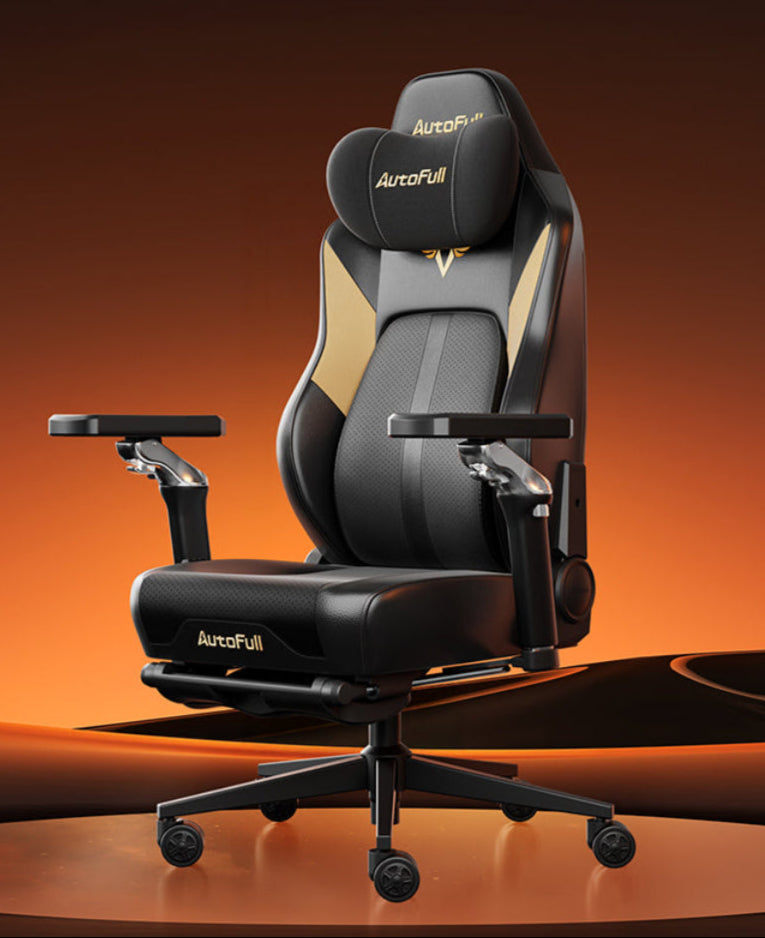


A good gaming station should support long sessions without forcing your neck, shoulders, wrists, or back into awkward positions. An ergonomic gaming chair setup is not only about buying a chair. It also includes desk height, monitor distance, keyboard placement, lighting, storage, and movement breaks. This guide explains how to build a practical setup from the ground up.
Master Basic Gaming Station Ergonomics
Gaming comfort starts with the full station, not one product. Before adding accessories, check how your chair, desk, monitor, keyboard, mouse, and room layout work together.
What Does Ergonomics Mean For Gaming?
Gaming station ergonomics means arranging your equipment so your body can stay in a relaxed, supported position while you play. The goal is not to sit perfectly still. The goal is to reduce unnecessary reach, twisting, bending, glare, and pressure during normal play.
A good setup should let you do the following:
- Keep your screen easy to see
- Keep your shoulders relaxed
- Place your keyboard and mouse within easy reach
- Support your lower back
- Rest your feet flat or on a footrest
- Change position during long sessions
Why Gamers Need a Different Setup Than Office Users
Gaming often involves faster mouse movement, longer focus on one screen, more intense grip, and longer continuous sessions. A setup that feels fine for short browsing may feel uncomfortable after two ranked matches or a long co-op session.
That is why gaming station ergonomics should consider both posture and performance. You need enough desk space for mouse movement, stable monitor placement, and chair support that does not restrict your arms.
Start With Adjustability
The best gaming station is adjustable. Fixed-height furniture can work, but it gives you fewer ways to correct posture problems. A chair with seat height adjustment, a desk at the right height, and a monitor that can move up or down make the setup easier to personalize.
Start With a Proper Gaming Posture Setup
Posture is the base of the station. If your body position is wrong, even premium gear will not feel comfortable for long.
Set Your Feet and Knees First
Start by sitting all the way back in the chair. Place your feet flat on the floor. If your feet do not reach the floor, use a footrest. Your knees should feel relaxed, with enough space under the desk so your legs are not pressed against the tabletop or cables.
A proper gaming posture setup should not make you perch on the front edge of the chair. If you have to lean forward all the time, the monitor, keyboard, or desk depth may need adjustment.
Support Your Lower Back
Your lower back should feel supported by the chair's backrest. If the chair has lumbar adjustment, position it where your lower back naturally curves. If the support feels too strong or too low, adjust it before changing other parts of the setup.
An ergonomic gaming chair setup should support your back without forcing you into a stiff position. You should still be able to shift slightly, lean back between matches, and return to a neutral position.
Relax Your Shoulders and Arms
Your elbows should stay near your sides instead of reaching forward. Your shoulders should not rise when your hands are on the keyboard and mouse. If your shoulders lift, the desk may be too high. If you collapse forward, the desk or monitor may be too far away.
A proper gaming posture setup should let your forearms rest comfortably while your wrists stay close to neutral.

Align Your Ergonomic Gaming Desk Setup
The desk controls your arm position, gear spacing, cable path, and available movement area. A good desk setup gives you enough room without forcing your body into a stretched position.
Choose the Right Desk Height
When your hands are on the keyboard and mouse, your elbows should sit comfortably near your body. Your forearms should not angle sharply upward or downward. If the desk is too high, raise the chair and use a footrest. If the desk is too low, your wrists and shoulders may feel compressed.
An ergonomic gaming desk setup should support both keyboard control and mouse movement. Do not choose a desk only by width. Height and depth matter just as much.
Place Keyboard and Mouse Within Easy Reach
Keep the keyboard and mouse close enough that your elbows stay relaxed. If you play low-sensitivity games, leave enough mouse space without pushing the keyboard too far away. Some players angle the keyboard slightly to create more mouse room, but the wrist should still feel comfortable.
Avoid placing the mouse too far to the side. This can make your shoulder reach outward for every movement. Your ergonomic gaming desk setup should let your mouse hand move freely without pulling your upper arm away from your body.
Keep Frequently Used Items Close
Controllers, headphones, water, charging cables, and remotes should be easy to reach without twisting. Put rarely used items farther away. This keeps the main play area clean and reduces repeated awkward reaching.
Fix Your Gaming Chair Monitor Positioning
Monitor placement affects neck comfort, eye comfort, aim consistency, and desk organization. It should be set after your chair and desk height are mostly correct.
Set the Monitor Distance
A common recommendation for computer screens is to sit at a comfortable distance where you can read text without leaning forward. For many setups, this is roughly an arm's length away, but monitor size and resolution can change the ideal distance.
Gaming chair monitor positioning should feel natural during actual gameplay. If you lean forward to see small UI text, adjust in-game scaling, display settings, or monitor placement before accepting poor posture as normal.
Set the Monitor Height
Place the screen so your head can stay upright. The top of the screen is often placed around eye level or slightly below, depending on screen size and viewing comfort. Large monitors may need slightly different placement so you do not tilt your head upward.
The goal of gaming chair monitor positioning is simple: your neck should not be bent up, down, or sideways for most of the session.
Center the Primary Screen
Your main screen should sit directly in front of your chair. If you use two monitors, place the main gaming screen in the center and the secondary screen to the side. If you use both equally, place them close together and angle them slightly inward.
Do not build an ergonomic gaming chair setup around a screen that forces your head to turn constantly. Monitor placement should follow where your body naturally faces.
Explore Functional Ergonomic Gaming Room Ideas
A gaming room should look good, but function comes first. The best room design supports posture, movement, focus, airflow, and easy maintenance.
Manage Lighting and Glare
Place the monitor so bright light does not reflect directly into your eyes. Avoid having a strong light source directly behind the screen or directly behind your chair. Use soft room lighting to reduce contrast between the screen and the room.
Good lighting is one of the most practical ergonomic gaming room ideas because it supports visual comfort without changing your gaming hardware.
Create Space for Movement
Even a strong setup cannot replace movement. Leave enough space to stand, stretch, and walk between sessions. If your room is crowded, move storage away from the chair path and keep the floor clear of cables.
A useful gaming area should make breaks easy. If standing up requires stepping over wires or moving boxes, you are less likely to do it.
Organize Cables and Accessories
Cable clutter can limit leg space and make cleaning harder. Route cables along the back of the desk, use clips or sleeves, and keep power strips off the walking path. Make sure cables do not pull on your mouse, headset, or controller.
Among practical ergonomic gaming room ideas, cable management is often underrated. It improves safety, movement, cleaning, and desk space at the same time.
Plan for Temperature and Airflow
Gaming equipment can warm a small room. Keep ventilation clear around the computer or console area. Do not block air vents with storage boxes, fabric, or wall decorations. A room that gets too warm can make long sessions uncomfortable, even when the chair and desk are well adjusted.

Conclusion
Creating an ergonomic gaming station from scratch means building around your body first. Set the chair, desk, monitor, keyboard, mouse, lighting, and room layout in the right order. A thoughtful ergonomic gaming chair setup can improve comfort, reduce awkward positioning, and make long gaming sessions easier to manage.
FAQs
What Is the Most Important Part of an Ergonomic Gaming Setup?
The most important part is fit. Your chair, desk, monitor, keyboard, and mouse should match your body size and play style. A proper gaming posture setup starts with feet support, relaxed shoulders, supported back, and easy reach to controls.
How High Should My Gaming Monitor Be?
Your monitor should let your head stay upright while you play. The top of the screen is often around eye level or slightly below. For large displays, adjust height and distance together so you do not tilt your neck upward.
Is a Gaming Chair Enough for Good Ergonomics?
No. A chair helps, but it is only one part of the station. You also need the right desk height, monitor position, keyboard placement, mouse space, lighting, and break habits. Gaming station ergonomics works best when the whole setup is aligned.
How Can I Build an Ergonomic Gaming Desk Setup on a Budget?
Start with adjustments before buying new gear. Raise or lower the monitor, add a footrest if needed, clear mouse space, improve lighting, and move accessories closer. An ergonomic gaming desk setup does not have to be expensive if the basic positions are correct.
What are Simple Ergonomic Gaming Room ideas for Small Spaces?
Use vertical storage, cable clips, a monitor arm if suitable, soft lighting, and a clear chair path. In small rooms, ergonomic gaming room ideas should focus on reducing clutter, keeping controls close, and making it easy to stand between sessions.


